The Pane SMB
All versions of macOS are able to establish connections with a file server that offers network shares via the SMB protocol. The SMB protocol (Server Message Block) developed by IBM and Microsoft has a history of more than 40 years, and therefore exists in many different variations that have changed over time.
When macOS accesses one or more SMB servers as a network client, you can control which variants and parameters of the protocol should be used in detail. With TinkerTool System you have access to all system-wide settings. Follow the steps below:
- Open the preference pane SMB Client.
- Select a tab that you want to change settings for.
- Change one or more values.
- Click Apply to save the settings and let them take effect.
The next time you connect to an SMB share, the changed settings should be active. If you want to be absolutely sure that all settings are actually in effect, you may like to restart the computer. If you accidentally changed values and want to revert to the current system-wide settings, click Revert. You can also reset all values for all four tabs back to the macOS defaults by clicking Set all to default.
If numeric values are entered that are too high or too low, TinkerTool System will automatically correct them to the permitted range. This is shown in the respective fields.
In addition to system-wide settings, macOS technically allows you to adjust all settings once more
- for specific shares, and
- for specific macOS users,
thereby overriding the system-wide settings. This is not currently supported by TinkerTool System. The following guidelines apply:
- If special SMB-connection settings have been set in your user account, the entire SMB Client pane is locked to avoid confusion.
- If settings exist for specific shares, the values won’t be visible in TinkerTool System. But they are not changed and remain untouched, even if you make system-wide changes.
General SMB Settings
The tab General shows basic settings for the operation of SMB connections.
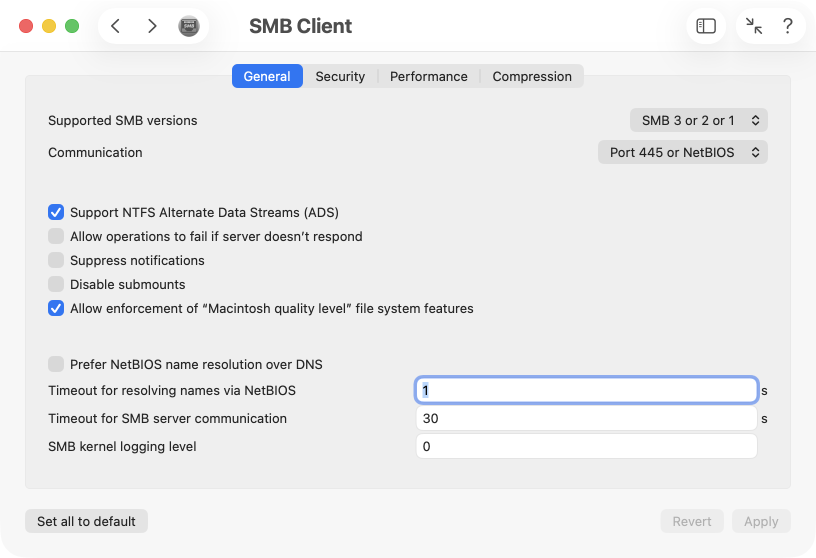
- Supported SMB versions: specifies the minimum protocol standard allowed for establishing connections to SMB servers. macOS generally attempts to negotiate the highest possible protocol version the server can support, which can be 3, 2, or 1. If desired, a connection can be rejected if the server can provide only version 1 or no higher than version 2, for example. Note that SMB 1 is considered insecure by today’s standards and should not be used if possible. In technical jargon, the different SMB protocol versions are also referred to as SMB dialects.
- Communication: by default, macOS tries to establish a connection to port 445 over the TCP/IP transport protocol. If the server does not support this, the connection attempt falls back to the older NetBIOS over TCP/IP method. The setting allows you to permit both methods or to block one of them.
- Support NTFS Alternate Data Streams (ADS): In the NTFS filesystem of Microsoft Windows you can store hidden named data streams alongside the normal file contents, which are called Alternate Data Streams (ADS). This is roughly equivalent to the Resource Fork from classic Mac OS or Extended Attributes in macOS. This setting controls whether programs are allowed to use this functionality over an SMB connection.
- Allow operations to fail if server doesn’t respond: Normally, a network client waits for the server to reply indicating whether a running operation succeeded or failed. If the server simply does not respond at all, this setting determines how the client should behave. It may decide to report a possible failure to the requesting applications (a behavior usually called soft mount) or to wait indefinitely until the server finally responds (hard mount).
- Suppress notifications: With this setting the client can be prevented from receiving messages from the server.
- Disable submounts: Normally a client mounts a shared folder on the server. A client can also choose to mount a subfolder of that share, so that the “higher-level” folders remain invisible in the network volume, even if they are shared. The ability to connect directly to a subfolder can be blocked with this setting.
- Allow enforcement of “Macintosh quality level” file system features: This setting ensures that only shares that provide a similar quality of service as that of usual macOS disk devices will be permitted. In particular, the server must be able to offer Access Control Lists (ACLs) and Extended Attributes.
- Prefer NetBIOS name resolution over DNS: Modern servers use the standard TCP/IP method DNS (Domain Name System) to map between server names and IP addresses. If desired, the legacy NetBIOS name-resolution method can be preferred instead.
- Timeout for resolving names via NetBIOS: If the old NetBIOS method is used instead of DNS, this value controls how long (in seconds) the client may wait for a response from the NetBIOS service.
- Timeout for SMB server communication: This is the overall timeout, in seconds, that the client will wait for a response from an SMB server.
- SMB kernel logging level: Here, a numeric level is specified that determines how detailed macOS records its SMB activity in the system logs. This is useful for troubleshooting SMB communication. The levels are defined by Apple but not otherwise documented. The default level is 0.
Settings for SMB Security
The tab Security lists settings relevant to the security of SMB operations, specifically in the areas user logins, packet signing and data encryption.
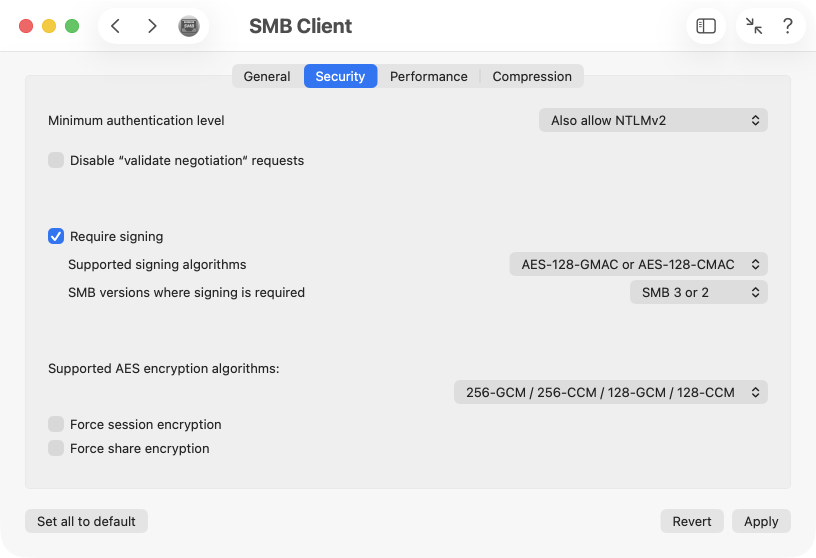
- Minimum authentication level: Throughout the decades, various authentication methods with differing security standards and password transfer modes have emerged for logging a user onto an SMB server. macOS generally attempts to select the “best”, i.e. the most secure method from the top of the list that the server can provide. This setting controls down to which level a less secure method may be accepted during log-on. At the highest level is a single-sign-on via the Kerberos industry standard. Following that are NTLMv2 (Windows New Technology Local Area Network Manager Version 2), the older version 1, the LM method (LAN Manager) and the least secure method, transmitting passwords in the clear.
- Disable “validate negotiation” requests: During the negotiation of the differing capabilities of server and client after connection establishment, the client sends a validate negotiate request to the server if SMB v3 is in use, checking whether the finally chosen operational parameters are acceptable. This ensures a minimum level of security and quality of service. For example, the use of signed data packets must have been negotiated if no guest login is present, otherwise the connection will be rejected. In certain special cases this behavior may be undesirable. Apple recommends (as one of several alternatives for resolving connection problems) to disable “Validate Negotiation” when the SMB server is a macOS system that uses the Apple Open Directory directory service and has logged in anonymously to the LDAP server.
- Require signing: This setting forces the client to always request packet signing from the SMB server. All transmitted data between the communication partners is digitally signed to ensure that no forged data from a potentially rogue computer is processed.
- Supported signing algorithms: When signing is used, the type of signatures that may be used can be specified. SMB 3 typically employs an Advanced Electronic Signature (AES) of the Cipher Based Message Authentication Code (CMAC) type. Optionally, the more powerful GMAC (Galois Message Authentication Code) variant may also be used.
- SMB versions where signing is required: This setting establishes the cross-relationship between signing and the permissible SMB versions.
- Supported AES encryption algorithms: This setting determines which methods for data encryption may be negotiated. Available options are Galois/Counter Mode (GCM) or Counter with Cipher Block Chaining Message Mode (CCM), each in variants with 256-bit or 128-bit key length.
- Force session encryption: This setting ensures that session data such as log-on and negotiations are always encrypted.
- Force share encryption: This setting ensures that the shared payload data, the contents of files during transfer, are always encrypted.
Settings for SMB Performance
The Performance tab provides settings that influence the speed of SMB communication. In addition to using caches (caches) in RAM, which can rapidly provide folder contents that have been pre-read on speculation, the use of multichannel technology can be controlled. With this technology, the client and server can communicate over multiple network interfaces at the same time. For example, a connection can run in parallel over Ethernet and Wi-Fi to significantly increase transport speeds.
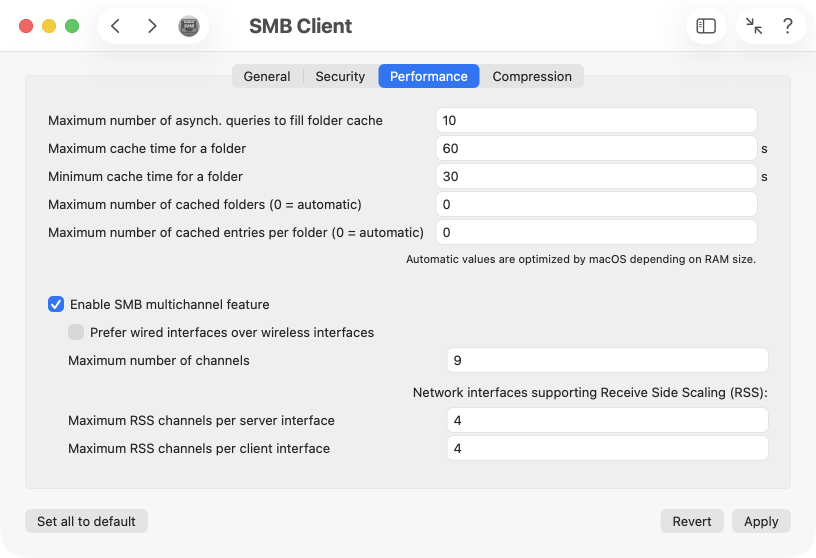
- Maximum number of asynch. queries to fill folder cache: It is advantageous when as many folders in the neighborhood of the folder the user is working with are cached in main memory. This value controls how many requests the client may speculatively send simultaneously to fill its folder cache.
- Maximum cache time for a folder: This value specifies the time in seconds after which folder cache contents must be discarded, regardless of whether they might still be valid.
- Minimum cache time for a folder: As above, but represents the time during which folder cache contents are considered valid without checking with the server whether this is actually the case.
- Maximum number of cached folders: This value determines how many folders the client may hold in its cache at the same time. A value of 0 indicates that macOS should automatically choose a typical number, depending on how much RAM the computer has.
- Maximum number of cache entries per folder: This value determines how many file entries for each cached folder can be placed into the cache. A value of 0 indicates that macOS should automatically choose a typical number, depending on how much RAM the computer has.
- Enable SMB multichannel feature: This allows the client and server to negotiate the ability to communicate simultaneously over multiple network interfaces, e.g., 2 Ethernet and 1 Wi-Fi connections.
- Prefer wired interfaces over wireless interfaces: Specifies that the system should avoid including Wi-Fi connections in the set of network interfaces allowed to communicate in parallel.
- Maximum number of channels: The upper limit on how many network interfaces may be used simultaneously to communicate with an SMB server.
- Maximum RSS channels per server interface: It is possible to implement multichannel capability not only as a software feature of the operating system, but also with network chips that support this in hardware. This is called Receive Side Scaling (RSS). The configurable value specifies how many hardware channels on the server side may be used for this.
- Maximum RSS channels per client interface: Same as above, but for data reception on the client side.
Settings for SMB Data Compression
The tab Compression lists SMB settings that control whether data should be compressed when sending it between client and server. This will require more computing power on both sides, but accelerates the transfer of files which aren’t compressed already. The method used in SMB technology is often called chained compression because compressing the data is just an additional step usually appended to the steps for signing and encryption.
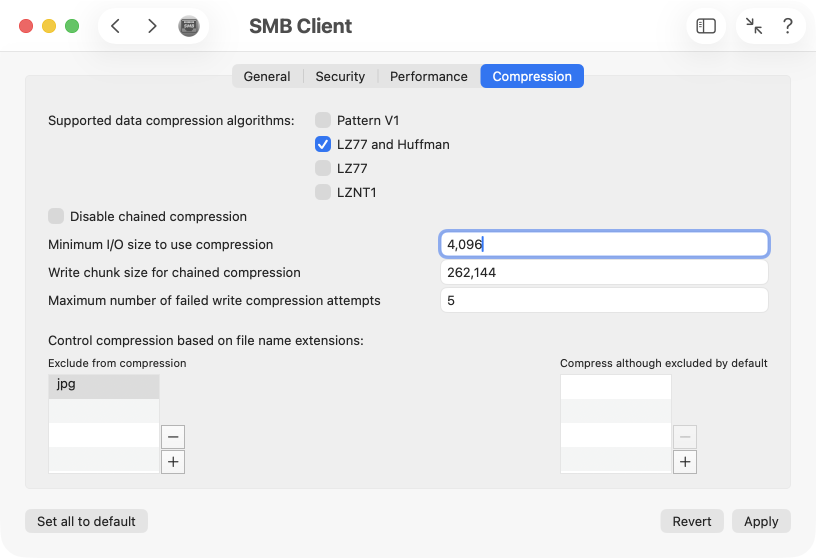
- Supported data-compression algorithms: This setting selects which compression techniques may be used, depending on the capabilities of client and server. By default, LZ77 is usually employed. The Microsoft-defined methods Pattern V1, LZ77 and Huffman, and LZNT1 are also available.
- Disable chained compression: With this setting, data compression during an SMB transfer can be blocked entirely.
- Minimum I/O size to use compression: This value specifies the smallest size of a data block that must be transmitted before the overhead of compression is even undertaken.
- Write chunk size for chained compression: Once the data has been compressed, this value determines the portions in which the compressed data should be sent over the network.
- Maximum number of failed write compression attempts: When a file already contains compressed data, it cannot usually be compressed further for mathematical reasons. In such cases the data volume may even increase, which is called a “compression failure.” This value determines after how many failures the compression of data blocks within a file should be abandoned.
- Exclude from compression: Already compressed data can often be identified from the file’s name extension, such as jpg, mpeg, or zip. To avoid the compression failures mentioned above, it can be defined from the outset that compression should not even be attempted for certain file types. Depending on implementation, the SMB client may already perform this filtering, but the list can be extended. The table lists the file extensions that should generally be excluded from SMB data compression.
- Compress although excluded by default: This table controls the opposite approach. Even if the SMB client implementation would normally exclude a file, some file name suffixes can be set to force a compression attempt.
Practical recommendations for private NAS systems
Many private individuals use NAS systems (Network Attached Storage) as simple file servers for their own home networks. Such devices typically run an operating system based on Linux with the SMB server software Samba to share the files. The risk that an attacker on the network is eavesdropping on traffic, or that a malicious server is introduced into the network, is relatively low in this situation. In practice, the settings described below have proven useful for such a configuration in terms of reliability, compatibility, and performance. We assume that all settings have first been reset with the Set all to default button to Apple’s baseline proposal. After that, only the following values need to be adjusted:
- General > Supported SMB versions: SMB 3 only
- General > Communication: Port 445 only
- General > Allow operations to fail if server doesn’t respond: on
- General > Suppress notifications: on
- Security > Disable “validate negotiation” requests: on
- Performance > Prefer wired interfaces over wireless interfaces: on
This is only a suggestion for initial configuration. With additional tuning, the settings may potentially be refined further on a case-by-case basis.
Checking the current settings of an SMB connection
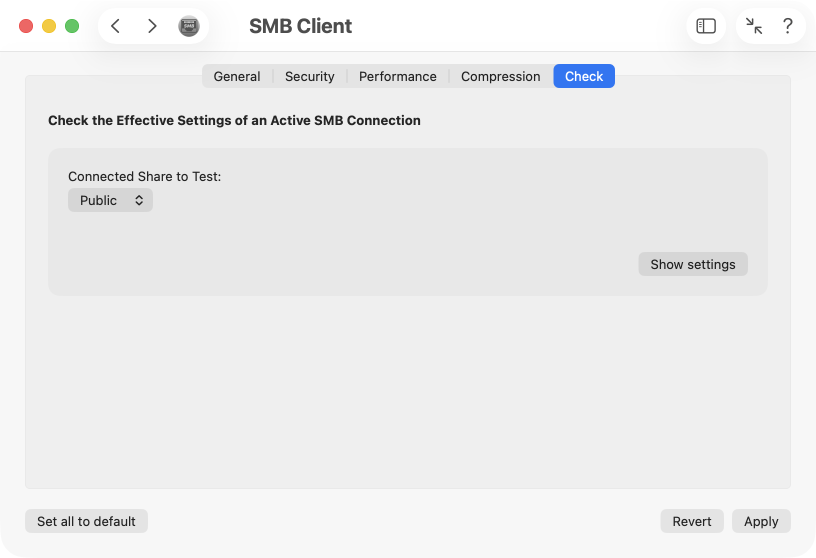
The settings described above represent the defaults macOS should use to establish a connection to an SMB server. Whether all defaults actually take effect, however, depends on the negotiation during connection setup and the capabilities of the server. Through the tab item Check, you can test which settings actually became effective for each individual connection to a share. Additionally, further technical detail data and statistics, e.g. about data compression usage, can be retrieved.
To gather data about an active SMB connection, perform the following steps:
- Open the sub-item Check of the pane SMB Client.
- Select the SMB server connection you want to check at Connected Share to Test. For identification, the share’s UNC path (Uniform Naming Convention) is shown in Unix-style notation.
- Click Show settings.
Note: UNC paths in Unix-style notation follow the pattern
//loginname@server/sharepath
The currently effective settings and statistics are displayed in a sheet window. The individual items should be self-explanatory. The listed settings use the same labels as the other four tabs. You can close the dialog window using the Close button or the return key.